स्वचालित सुलभता परीक्षण आपकी आधी समस्याएँ क्यों नहीं पकड़ पाता
स्वचालित जाँचें उपयोगी, तेज़ और आवश्यक हैं। वे बनावट से ही अधूरी भी होती हैं।
सामग्री की तालिका
- स्वचालित सुलभता परीक्षण के बारे में असुविधाजनक सच
- स्वचालित परीक्षण किन चीज़ों में अच्छे हैं
- automation कहाँ टूटती है
- High score का झूठा आराम
- सबसे अधिक छूटने वाली categories
- 1. Keyboard और focus behavior
- 2. अर्थपूर्ण names और descriptions
- 3. Error handling
- 4. Visual adaptation
- 5. Content clarity
- बेहतर testing workflow
- Automated checks लगातार चलाएँ
- Manual keyboard testing जोड़ें
- कम से कम एक screen reader से test करें
- Content और states review करें
- Stakes high हों तो disabled users को शामिल करें
- Automated results को जिम्मेदारी से कैसे interpret करें
- Practical standard: obvious को automate करें, experience को manually test करें
स्वचालित सुलभता परीक्षण के बारे में असुविधाजनक सच
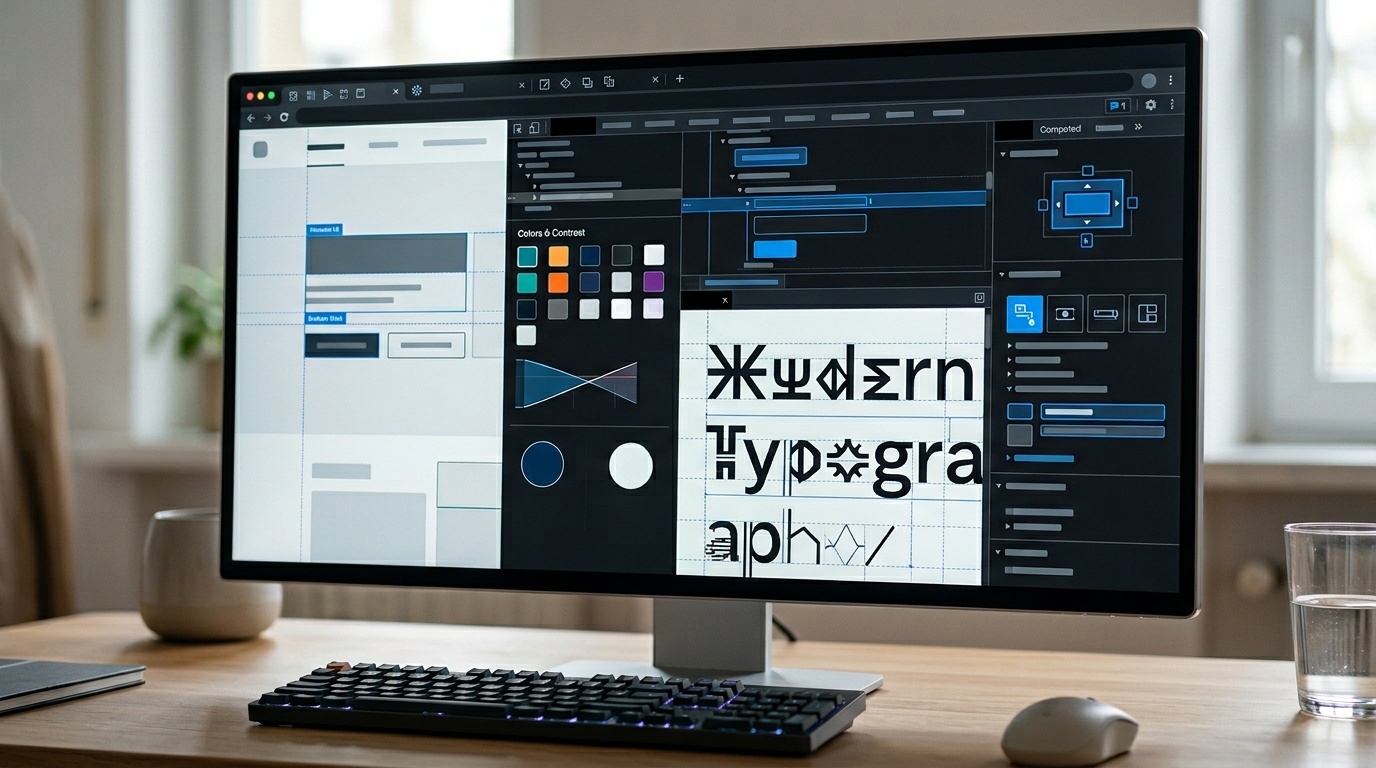
स्वचालित सुलभता परीक्षण उन सबसे अच्छी आदतों में से एक है जिसे कोई वेब टीम अपना सकती है। यह गुम form labels, कम-कॉन्ट्रास्ट टेक्स्ट, अमान्य ARIA, डुप्लिकेट IDs, खाली बटन, और ऐसे अन्य दोष पकड़ता है जिन्हें कभी production तक नहीं पहुँचना चाहिए।
इसे नियमित रूप से गलत समझा भी जाता है।
स्वचालित सुलभता रिपोर्ट का पास होना यह नहीं बताता कि कोई पेज सुलभ है। इसका अर्थ केवल यह है कि टूल ने उन समस्याओं के उपसमूह को नहीं पाया जिन्हें वह पहचानना जानता है। यह उपसमूह मूल्यवान है, लेकिन सीमित है। कई सुलभता विफलताएँ अर्थ, क्रम, उद्देश्य, संदर्भ और मानवीय interaction पर निर्भर करती हैं। सॉफ़्टवेयर markup की जाँच कर सकता है। यह भरोसेमंद तरीके से नहीं समझ सकता कि अनुभव screen reader, keyboard, magnification, voice control, captions, या cognitive support का उपयोग करने वाले व्यक्ति के लिए काम करता है या नहीं।
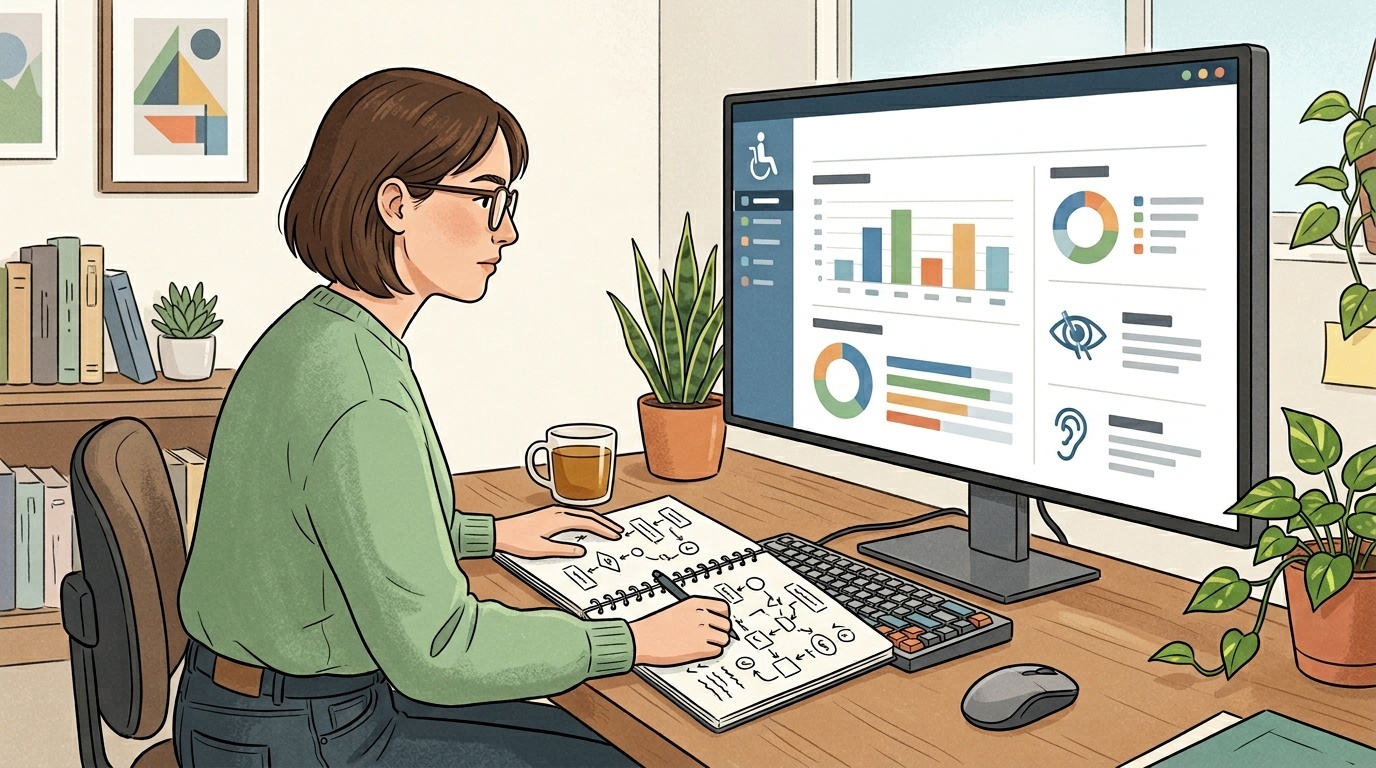
इसीलिए यह दावा कि स्वचालित परीक्षण आपकी लगभग आधी समस्याएँ नहीं पकड़ता, निराशावादी नहीं है। यह उदार है। कुछ issue categories बहुत हद तक automate की जा सकती हैं। अन्य लगभग बिल्कुल नहीं।
व्यावहारिक उत्तर स्वचालित टूल छोड़ना नहीं है। उत्तर है उन्हें सही जगह पर रखना: जल्दी, अक्सर, और एक व्यापक testing workflow के हिस्से के रूप में।
स्वचालित परीक्षण किन चीज़ों में अच्छे हैं
स्वचालित टूल deterministic failures खोजने में उत्कृष्ट होते हैं। यदि कोई rule machine-readable condition के रूप में व्यक्त किया जा सकता है, तो scanner आम तौर पर उसे जल्दी और लगातार जाँच सकता है।
सामान्य उदाहरणों में शामिल हैं:
- ऐसे images जिनमें
altattributes नहीं हैं - ऐसे form inputs जिनसे labels संबद्ध नहीं हैं
- ऐसे buttons जिनके accessible names नहीं हैं
- ऐसा text जो contrast thresholds में विफल होता है
- अमान्य ARIA attributes या roles
- Heading levels जो संदिग्ध तरीके से skip करते हैं
- Landmarks जो गायब हैं या duplicated हैं
- ऐसे links जिनके accessible names खाली हैं
- ऐसी tables जिनमें basic structure नहीं है
इन जाँचों को automate करना सार्थक है क्योंकि repetitive inspection में इंसान अच्छे नहीं होते। यदि कोई टूल milliseconds में missing labels पकड़ सकता है, तो किसी को भी हर page को manually scan नहीं करना चाहिए।
स्वचालित जाँचें engineering workflows में सुलभता पर चर्चा करना भी आसान बनाती हैं। CI में failing test ठोस होता है। pull request में warning समय पर होती है। templates में trend line किसी team को सुधारने के लिए कुछ देती है।
समस्या तब शुरू होती है जब teams इन जाँचों को basic hygiene के प्रमाण के बजाय सुलभता के प्रमाण के रूप में मानने लगती हैं।
automation कहाँ टूटती है
सुलभता केवल code की property नहीं है। यह उपयोग की property है।
कोई टूल आपको बता सकता है कि किसी image में alt text है या नहीं। यह आम तौर पर नहीं बता सकता कि वह alt text उपयोगी है या नहीं। product की image को product page पर detailed description की ज़रूरत हो सकती है, decorative hero में किसी description की ज़रूरत नहीं हो सकती, और help article में बिल्कुल अलग description की ज़रूरत हो सकती है। सही उत्तर context पर निर्भर करता है। इसलिए teams को केवल linter rule नहीं, बल्कि image alt text के लिए व्यावहारिक दृष्टिकोण जैसी editorial guidance की ज़रूरत होती है।
यही समस्या हर जगह दिखती है।
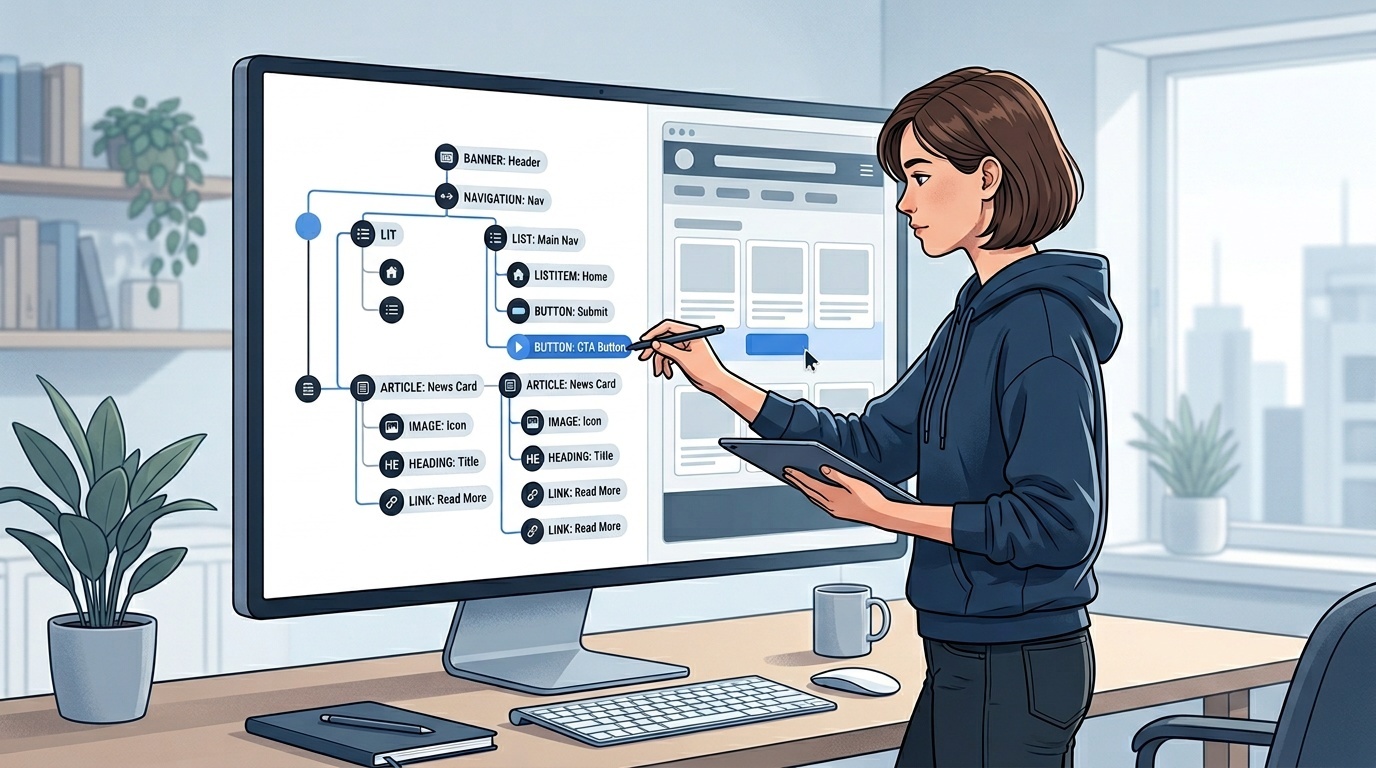
Scanner पुष्टि कर सकता है कि हर button का accessible name है। यह हमेशा नहीं बता सकता कि name समझ में आता है या नहीं। पाँच “सबमिट” नाम वाले buttons वाला page basic rule पास कर सकता है और फिर भी screen reader users के लिए बेहद खराब हो सकता है। Modal में सही ARIA attributes हो सकते हैं, लेकिन focus गलत तरीके से trap हो सकता है। Custom dropdown static markup में compliant दिख सकता है और जैसे ही कोई उसे keyboard से उपयोग करने की कोशिश करे, विफल हो सकता है।
Automation ऐसे सवालों में संघर्ष करती है:
- क्या focus order visual और logical order से मेल खाता है?
- क्या हर task केवल keyboard से पूरा किया जा सकता है?
- क्या error messages specific, timely, और fields से associated हैं?
- क्या text resize या zoom होने पर भी page काम करता है?
- क्या assistive technology के लिए reading order समझदारी भरा है?
- क्या instructions color या position पर निर्भर हुए बिना समझ में आती हैं?
- क्या captions, transcripts, और labels वास्तव में content communicate करते हैं?
- क्या component states में predictably behave करता है?
ये edge cases नहीं हैं। ये सुलभता के केंद्र में हैं।
High score का झूठा आराम
Accessibility scores आकर्षक होते हैं क्योंकि वे एक जटिल विषय को एक संख्या में समेट देते हैं। Dashboard 98 कहता है। Report में green checks दिखते हैं। Release सुरक्षित लगता है।
लेकिन score केवल वही माप रहा होता है जो tool मापता है।
यह performance testing जैसा है। Lighthouse report महत्वपूर्ण समस्याएँ दिखा सकती है, लेकिन यह वैसा नहीं है जैसे किसी real user को mid-range phone पर slow checkout से जूझते देखना। यदि आपकी team पहले से performance audits का उपयोग करती है, तो वही mindset यहाँ भी लागू होता है: report ध्यान से पढ़ें, फिर उन findings को prioritize करें जो real users को प्रभावित करती हैं। हमने इस अंतर के बारे में बिना घबराए Lighthouse report कैसे पढ़ें में लिखा है।
Accessibility reports को भी इसी संयम की आवश्यकता होती है। Clean automated scan एक starting point है। यह certificate नहीं है।
जोखिम खासकर तब अधिक होता है जब teams केवल static pages पर scans चलाती हैं। Modern interfaces stateful होते हैं: menus खुलते हैं, drawers slide करते हैं, toasts दिखाई देते हैं, validation messages update होते हैं, tabs panels बदलते हैं, filters content rewrite करते हैं, और authentication सब कुछ बदल देता है। कई गंभीर सुलभता दोष इन्हीं interactions में रहते हैं।
यदि आपका scanner केवल initial DOM देखता है, तो वह product को miss कर रहा है।
सबसे अधिक छूटने वाली categories
1. Keyboard और focus behavior
Keyboard access इस बात का सबसे स्पष्ट उदाहरणों में से एक है कि automation क्यों पर्याप्त नहीं है।
कोई tool detect कर सकता है कि कोई element focusable है या नहीं। यह positive tabindex values या obvious focus traps पकड़ सकता है। लेकिन यह भरोसेमंद तरीके से judge नहीं कर सकता कि tab sequence coherent लगता है या नहीं, action के बाद focus सही जगह जाता है या नहीं, या dismissed component focus को trigger पर लौटाता है या नहीं।
आपको actual workflow में Tab, Shift+Tab, Enter, Space, Escape, और arrow keys दबाने के लिए एक इंसान की ज़रूरत होती है।
यह custom controls के लिए विशेष रूप से महत्वपूर्ण है। Native HTML elements वर्षों का accessibility behavior मुफ्त में साथ लाते हैं। Buttons, selects, checkboxes, menus, और dialogs को divs से फिर से बनाना मतलब अब आपकी team उस behavior की मालिक है। यदि आप interactive components review कर रहे हैं, तो accessible web buttons के लिए एक छोटी checklist से शुरू करें और वही discipline हर custom control तक बढ़ाएँ।
2. अर्थपूर्ण names और descriptions
स्वचालित टूल absence detect कर सकते हैं। Quality detect करने में वे बहुत कमजोर होते हैं।
“और पढ़ें” नाम वाला link तकनीकी रूप से accessible name रख सकता है। OK label वाला button valid हो सकता है। Form hint मौजूद हो सकता है। लेकिन क्या वे context में meaningful हैं? अक्सर नहीं।
Accessible names users को बताने चाहिए कि क्या होगा या element क्या दर्शाता है। इसके लिए judgment चाहिए। इसके लिए interface के साथ testing भी चाहिए, केवल code के साथ नहीं।
3. Error handling
Forms सुलभता failures से भरे होते हैं जिन्हें scanners केवल आंशिक रूप से पकड़ते हैं।
कोई tool unlabeled field को flag कर सकता है। यह शायद न पकड़े कि validation message बहुत देर से दिखाई देता है, बहुत जल्दी गायब हो जाता है, screen readers को announce नहीं होता, या “अमान्य input” कहता है जबकि उसे कहना चाहिए “Password कम से कम 12 characters का होना चाहिए।”
अच्छा error handling interaction design है। इसे manual testing और आदर्श रूप से user testing की ज़रूरत होती है।
4. Visual adaptation
WCAG में resizing text, reflow, contrast, spacing, और single sensory cue पर निर्भर न रहने से जुड़ी requirements शामिल हैं। इनमें से कुछ automatically check किया जा सकता है, लेकिन असली सवाल यह है कि बदली हुई conditions में interface usable रहता है या नहीं।
200% zoom आज़माएँ। Browser text resizing आज़माएँ। High contrast या forced colors mode आज़माएँ। Narrow viewport widths आज़माएँ। Reduced motion आज़माएँ। कई sites जो default settings पर polished दिखती हैं, users की preferences लागू होते ही जल्दी टूट जाती हैं।
5. Content clarity
कोई automated accessibility tool पूरी तरह assess नहीं कर सकता कि content समझने योग्य है या नहीं।
यह missing headings या vague link text flag कर सकता है। यह नहीं जान सकता कि page किसी process को साफ़ तरीके से समझाता है या नहीं, labels user expectations से मेल खाते हैं या नहीं, या dense copy avoidable cognitive load पैदा करती है या नहीं।
सुलभता केवल assistive technology compatibility के बारे में नहीं है। यह stress में मौजूद लोगों, अपरिचित भाषा का उपयोग करने वालों, attention constraints से जूझने वालों, या complex tasks navigate करने वालों के लिए friction कम करने के बारे में भी है।
बेहतर testing workflow
Balanced accessibility workflow में layers होती हैं।
Automated checks लगातार चलाएँ
Development, pull requests, component previews, और CI में automated tests का उपयोग करें। वे boring, fast, और non-negotiable होने चाहिए। नए missing labels और invalid ARIA खोजने के लिए quarterly audit की ज़रूरत नहीं होनी चाहिए।
इन failures को linting failures की तरह treat करें। Goal heroics नहीं है; goal regressions रोकना है।
Manual keyboard testing जोड़ें
हर meaningful user flow के लिए mouse के बिना test करें। इसमें navigation, search, account creation, checkout, filtering, modals, menus, और form submission शामिल हैं।
कम से कम verify करें:
- हर interactive element reachable है
- Focus हर समय visible है
- Focus order logical है
- Expected keys काम करती हैं
- Escape dismissible overlays को dismiss करता है
- Components खोलने और बंद करने के बाद focus managed है
- कोई keyboard trap मौजूद नहीं है
यह एक आदत automated scans से छूटने वाली issues की बड़ी class पकड़ती है।
कम से कम एक screen reader से test करें
Useful चीज़ें सीखने के लिए आपको expert screen reader user बनने की ज़रूरत नहीं है। आपको विनम्रता की ज़रूरत है। Screen reader testing की learning curve होती है, और beginners problems को misdiagnose कर सकते हैं।
फिर भी, VoiceOver, NVDA, या JAWS के साथ basic testing broken names, confusing reading order, unannounced updates, और landmark problems दिखा सकती है जिन्हें scanner शायद न पकड़े।
इसे semantic HTML के साथ pair करें। जितने अधिक native elements आप use करेंगे, आपकी accessibility उतनी कम fragile होगी।
Content और states review करें
Empty states, loading states, error states, disabled states, success messages, और permission failures check करें। Accessibility bugs अक्सर happy path के बाहर छिपे होते हैं।
Actual words भी review करें। Labels, headings, instructions, और error messages interface का हिस्सा हैं।
Stakes high हों तो disabled users को शामिल करें
Critical flows के लिए manual expert review पर्याप्त नहीं है। Disabled participants के साथ user testing ऐसी समस्याएँ खोजती है जिनका teams अनुमान नहीं लगातीं। यह public services, healthcare, finance, education, और किसी भी ऐसे flow के लिए विशेष रूप से महत्वपूर्ण है जहाँ exclusion के गंभीर परिणाम हों।
Automated testing scale करती है। Human testing समझती है।
Automated results को जिम्मेदारी से कैसे interpret करें
यह न पूछें, क्या हम pass हुए?
बेहतर सवाल पूछें:
- यह tool कौन-सी issue categories detect कर सकता है?
- इसने कौन-से templates और states scan किए?
- क्या यह interactions के बाद चला, या केवल initial load पर?
- क्या violations root cause के आधार पर grouped हैं या बार-बार counted हैं?
- कौन-सी failures users को tasks complete करने से रोकती हैं?
- अब भी क्या manual review की ज़रूरत है?
यह framing बातचीत बदल देती है। Automated tools evidence बनते हैं, authority नहीं।
यह teams को busywork से बचने में भी मदद करता है। एक single component fix करने से सैकड़ों repeated violations हट सकते हैं। इसके विपरीत, केवल एक reported issue वाला page अब भी severe keyboard trap रख सकता है। Counts impact नहीं हैं।
Practical standard: obvious को automate करें, experience को manually test करें
सबसे अच्छी accessibility teams anti-tool नहीं होतीं। वे anti-fantasy होती हैं।
वे वही automate करती हैं जिसे machines भरोसेमंद तरीके से detect कर सकती हैं। वे behavior और meaning पर निर्भर चीज़ों को manually test करती हैं। वे WCAG जैसे standards को shared baseline की तरह उपयोग करती हैं, product का उपयोग करने के substitute की तरह नहीं।
यदि आपकी current process launch से पहले केवल automated scan है, तो इसे इस order में सुधारें:
- Development में automated checks पहले जोड़ें।
- Core flows को manually keyboard-test करें।
- Names, labels, errors, और instructions review करें।
- Common components को screen reader से test करें।
- High-risk journeys के लिए expert और user testing लाएँ।
यह perfect process नहीं है। यह realistic process है। और यह किसी green accessibility score से कहीं अधिक खोजेगी।
अक्सर पूछे जाने वाले प्रश्न
Automated accessibility testing वास्तव में कितना पकड़ सकता है?
क्या automated scan pass करने का मतलब है कि हम WCAG पूरा करते हैं?
सबसे पहले जोड़ने के लिए सबसे महत्वपूर्ण manual test कौन-सा है?
क्या small websites को screen reader testing की ज़रूरत होती है?
क्या automated accessibility tests deployment block करने चाहिए?
स्रोत और आगे की पढ़ाई